Click Analyze
Now that your data are entered and saved, it is time to analyze. Click “Analyze,” then “General Linear Model” and then “Repeated Measures.”
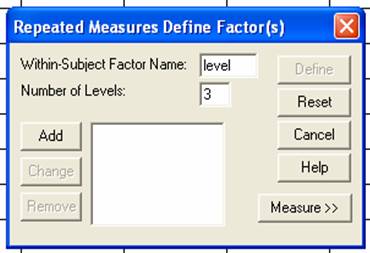
Repeated Measures Define Factor(s) box
This box will appear.
Fill in the blanks
You want to type something into the “Within-Subject Factor Name” box. The word “Factor” refers to your IV. Some people choose to type in a word that relates to the IV in this box. Sometimes, SPSS has the word “Factor1” in the box to start and people use that. I usually type in the word “level” instead. This makes things easier for me. The name you choose is up to you. You want to type a number into the “Number of Levels” box. Because my IV has 3 levels (conditions), I will type in the number 3. If my IV had 4 levels (conditions), I would type in the number 4 instead.
Click Add
When you are finished filling in the blanks, click the Add button.
What you will see
The name and number that you entered previously will appear in a large window. In this example, you can see the word “level(3)” in the window. This tells SPSS that there is one IV that I want to analyze, named level, and it has 3 levels (conditions). Click the Define button to continue.
Repeated Measures box
This will appear. There will be two windows of importance. One large window on the left contains your three conditions. In this example, you can see the three conditions, named caffeine, juice and beer, in the window on the left. There is a second large window on the upper right. You can see blanks with the numbers 1, 2 and 3 next to them. Your goal will be to get each of the three condition names from the box on the left to the box on the upper right.
To transfer each condition name…
Click on the condition name to highlight it and then click on the arrow button that is closest to the box on the upper right.
What you will see
Each time you transfer a condition name, you will see this name disappear from the window on the left and appear in the window on the upper right. In this example, see how the condition name “caffeine” disappeared from the window on the left and now appears in the window on the right, next to the number 1. This tells SPSS that caffeine is condition 1.
Continue transferring
Keep transferring all of your condition names over, using the same strategy as before. Just highlight the variable name and move it with the corresponding arrow key. When you are finished transferring, you should see something like the picture below. See how all three condition names appear in the window on the upper right? When you see something like this, click the Options button below.
Repeated Measures: Options box
This box will appear. You will see many options in the Display area. Click the blank box next to the Descriptive Statistics option. You will see a check mark appear to indicate that this option has been selected. Note that you could deselect by clicking on the blank box again. When you are finished, click the Continue button.
Back to the Repeated Measures box
You will return to this box. Click the OK button and wait a few seconds for processing.
You will see your results
SPSS will print out a lot of numbers. You will probably have to scroll down to see all of your results.
Save your results!
To a meaningful place and with a meaningful name. In this example, I decided to call this file “Effect of Beverage Type on Number of Hours of Sleep Output.spo.” This will help me easily find this output file if I want to look at it in the future.
Background | Enter Data | Analyze Data | Interpret Data | Report Data
|